|
Glossary
Collections
Collections are predefined lists of decks that might be stored in different sub-folders of your main Decks Folder. This gives you the possibility of classifying your decks in different ways simultaneously. For example you might want to organise your folders according to types of deck such as Rider Waite Decks or Le Normand Decks. An alternative would be to organise them by their country of origin, or their historical period or their original medium (whether purely digital or scanned from print) etc. etc. If you wanted to rely purely on your folder structure you would have to choose just one of these systems of organisation.
On the other hand you can define any of these lists as a collection. Once the collection has been defined the program gives you various ways of comparing its decks side by side. How this works exactly will depend on what type of collection it is. There are two main kinds of collections to consider, Sequential Collections, or Load at Once Collections.
A Sequential collection can be loaded up into the program's memory of recent decks, allowing you to navigate through the collection using the left and right Deck Navigation Arrows as described in Switching Decks. Sequential collections are perfect for Comparative Readings when all the decks in the collection have the same number of cards and you are switching between decks to get a different take on the reading in progress.
A Load at Once collection is perfect for when there is a group of decks that you tend to use together at the same time. When you launch a collection of this kind all the decks in the collection appear side by side as Secondary Decks.
Collections Folder
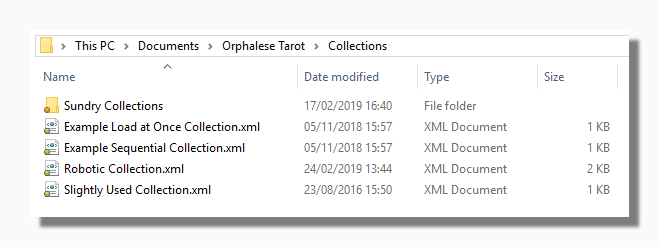
The Collection Folder is where the program stores any Collections you create. By default it is located at [Documents]\Orphalese\Collections but this setting can be changed on the Folders tab of the Options form. The Collections folder can contain subfolders and collections themselves which are saved in XML Format.
Decks Folder
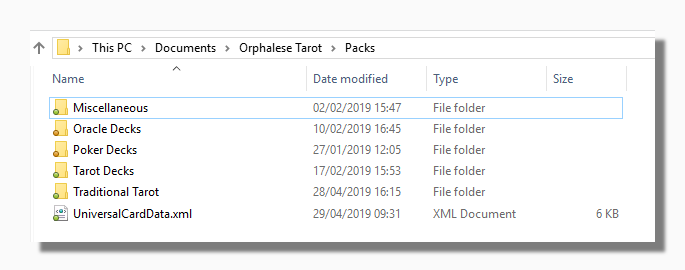
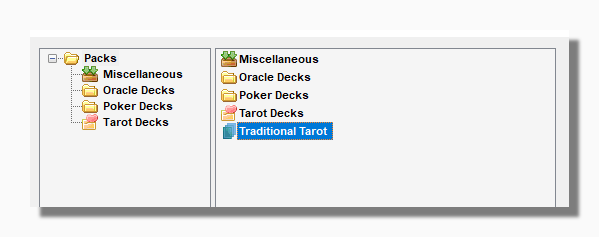
The Deck Folder is where the program stores all your decks. By default it is located at [Documents]\Orphalese\Packs but this setting can be changed on the Folders tab of the Options form. The Decks folder contains subfolders which may themselves be Decks or may be containers for other decks. The program will recognise a folder as a deck if it contains a suitable image file named "00", e.g. "00.jpg" etc. Here is a picture of the exact same folder but viewed in the Deck Management tool. You can see that the program recognises the Traditional Tarot as a deck. It also flags that one folder has been designated a Load on Demand folder and another has been designated as a Dynamic Collection. The file UniversalCardData.xml contains the Universal Notes as described in Pop-up Notes.
Deck Form
If you have a single deck open in the program, and then you choose a different deck off your My Decks list, you will see the deck change before your eyes. It would seem as though the first deck disappears and the second deck appears, although really the first deck is still there in the memory of the program and you can go back to it by clicking on the navigation arrows as described in Switching Decks. Here we are talking about a single Deck Form that has been used to host two decks. Alternatively if you hold down your shift key while clicking on the second deck in your My Decks list (or by using any of the other methods described in Open New Deck) you will see that a second Deck Form appears side by side with the first. Both have separate histories and memories of the decks they have hosted. In the program itself the word Deck is used interchangeably for the two concepts, but in this Help File, I have tried to apply the two terms correctly, especially where confusion might arise.
Dynamic Collection
A Dynamic Collection is a sub folder of your main Decks Folder which has been flagged to act as a kind of Sequential Collection in the Deck Management Tool.
When a deck folder is flagged in this way it appears on both the My Decks menu and the My Collections menu with the following icon:
 . On the My Collections menu it can be launched in the same way as any other collection, simply by clicking on its icon. Once opened it behaves in a similar way to any sequential collection: the first deck in the folder appears and the rest of the decks in that folder are loaded up into the memory of the current deck form so you can navigate through the whole set using the Deck Navigation Arrows.
It is dynamic because any deck added to the folder automatically becomes part of the collection. However unlike a normal collection it obviously has the limitation that it can only contain decks from a single folder.
On the My Decks menu the collection can be loaded by shift-clicking its icon.
Focus
In Windows programs a form is said to be Active or to have the Focus when input from your keyboard is directed to that form. Each Deck Form or Card used in the program is such a form so at times it might be necessary to click on a card or a deck to activate it and enable it to respond to keyboard shortcuts.
Image Files The image file formats recognised by the program are:
- .jpg
- .jpeg
- .gif
- .bmp
- .png
- .jpe
- .svg
The .svg file format is used for Vector Graphics decks and is only supported at an experimental level by the program.
Load at Once Collection
A Load at Once collection is perfect for when there is a group of decks that you tend to use together at the same time. When you launch a collection of this kind all the decks in the collection appear side by side as Secondary Decks. This kind of collection can be created in the Collection Wizard Tool and is designated in the My Collections list with the following icon:

Both Sequential and Load at Once collections can be loaded into the Compare Cards Tool with a single click for side by side comparison of any card.
Load on Demand Folder
The concept of a Load on Demand Folder is useful for users who have large collections of decks. It is natural to assume that if you have several hundred decks in your collection the vast majority of them will only be used or consulted infrequently. With a large collection it takes a long time to build the program's My Decks menu, so marking a folder as Load on Demand can save time by not loading the decks it contains until the user clicks on the Load on Demand menu item:
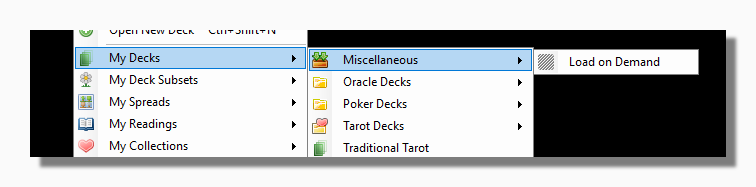
Deck containing sub-folders can be marked as Load on Demand in the Deck Management tool.
These decks will remain available for your current session. When the program is closed, this setting will revert back to Load on Demand
Principal Deck
Text in the Information Panel of the Ribbon tells you the name of the currently active deck (the one that has the focus), the kind of Deck Form it is and the number of cards out and remaining in the deck.
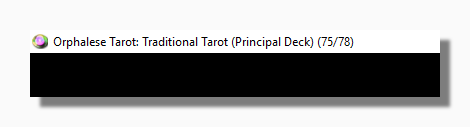
Principal Deck means it is a deck hosted by the first Deck Form to appear when the program was launched. When you have multiple decks in use it is the Principal Deck which determines what Background Image is displayed and which deck shows the Main Menu of the program. Other kinds of Deck Form show reduced versions of the menu. Other kinds of Deck Form you can find are:
Reading
A Reading is an instance of a Spread laid out on a specific occasion and then saved for later reference or to share with the readee.
Readings Folder
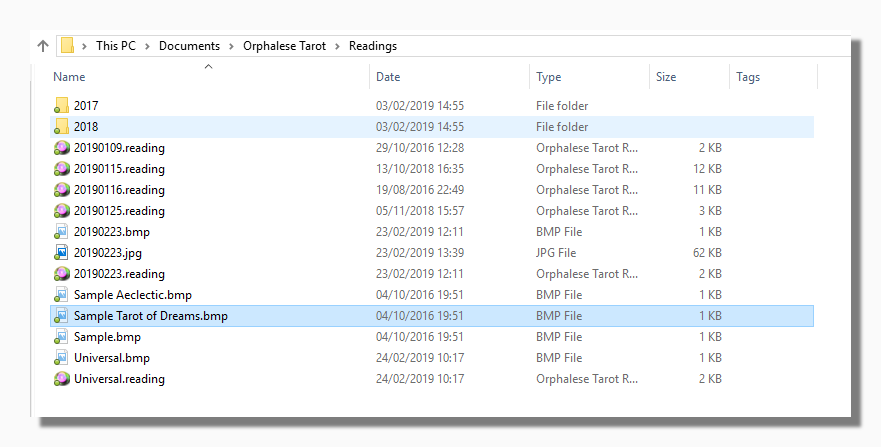
The Reading Folder is where the program stores any Readings you create. By default it is located at [Documents]\Orphalese\Readings but this setting can be changed on the Folders tab of the Options form. The Readings folder can contain subfolders and Readings themselves which are saved in XML Format, but associated with the file format .reading, meaning they can be opened in Orphalese Tarot directly by clicking on the file.
The screen capture above also shows image files which have been created as attachments in the Reading Wizard to send to somebody via email.
Rich Text Format
Rich Text Format refers to a file format which can contain formatted text such as you would create in a word processing program such a Microsoft Word. It is one of the formats that can be used to export your reading notes. You can export readings in this format using the Reading Wizard.
Schema
The program lets you associate a variety of notes with each card. From version 10.0 onwards the program also lets you give a name to each card. The name appears when the card's pop-up notes are showing.
The names are also very useful when it comes to selecting cards in a list, for example when you are picking cards to compare side by side or to include in a Subset.
Names can be given to cards in two ways. First you can edit the card name for any card in the Edit Card Notes window. Simply type the correct name for each card as you navigate through the deck in the normal way when editing Card Notes.
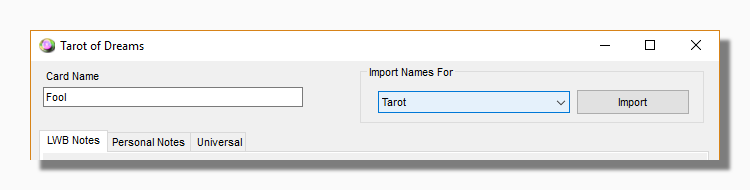
In the same place you can also find a tool for importing a schema. A schema is a predefined set of card names, and the program comes with two schemas hard wired:
The Tarot Schema: Has the traditional names for the Major Arcana cards followed by the Minor Arcana in the order Wands, Cups, Swords, Coins.
The Cartomancy Schema: Has the names for a poker deck with the suits in the order Spades, Diamonds, Clubs, Hearts.
The names used will depend on the Language currently selected in the program.
Tip: The Tarot Schema by default follows the convention that the Justice and Strength cards represent positions 9 and 12 respectively in the Major Arcana. This preference can be changed on the Default Options tab of the Options form.
Dynamic Schema: When importing names from a schema on the Edit Card form there is also the option to browse for any existing deck in your collection and use the names you have defined there. So if you want to use a set of card names that correspond to another divinatory system or one of your own devising you only have to go through the process of manually assigning names once. On subsequent occasions you can browse back to the deck in which you defined the names previously.
Secondary Deck
Text in the Information Panel of the Ribbon tells you the name of the currently active deck (the one that has the focus), the kind of Deck Form it is and the number of cards out and remaining in the deck.
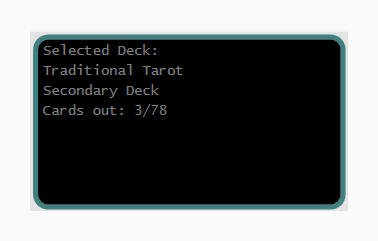
Secondary Deck means it is a deck hosted by a secondary Deck Form in one of the ways described in Opening New Decks.
A Secondary Deck has a somewhat reduced menu compared to the Primary Deck. Instead of a Quit Application button it has a Close Deck button.
Other kinds of Deck Form you can find are:
Sequential Collection
A Sequential collection can be loaded up into the program's memory of recent decks, allowing you to navigate through the collection using the left and right Deck Navigation Arrows as described in Switching Decks. Sequential collections are perfect for Comparative Readings when all the decks in the collection have the same number of cards and you are switching between decks to get a different take on the reading in progress. Sequential collections have the following icon in the My Collections menu:
 .
.
Both Sequential and Load at Once collections can be loaded into the Compare Cards Tool with a single click for side by side comparison of any card.
Spread
A Spread is a predefined arrangement of cards which can be laid out on any occasion for the purpose of giving a Reading.
Spreads Folder
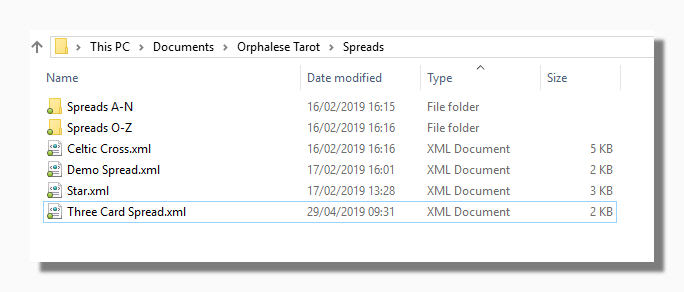
The Spread Folder is where the program stores any Spreads you create. By default it is located at [Documents]\Orphalese\Spreads but this setting can be changed on the Folders tab of the Options form. The Spreads folder can contain subfolders and Spreads themselves which are saved in XML Format.
Subset
A Subset is a predefined selection of cards from an existing deck. For example, suppose you have a Rider Waite tarot deck in your My Decks list. Such a deck consists of 78 card images and other associated files. You can open the deck and use it with its 78 cards whenever you like. But now suppose that you sometimes like to do readings with just the major arcana from this deck. Before the introduction of subsets into the program in version 10.0 it would have been necessary to copy the major arcana files into a new folder and name it for example "Rider Waite Majors". This would be a needless duplication of files. Defining subsets allows you to work with different sets of cards from the same original deck, for example majors, minors, odds, evens or any other subset of cards that you wish to define.
Subsets can be created and defined in the Subsets Wizard.
In practice a subset consists of an XML File containing the path to the deck that is used in the subset and a list of the numbers of the cards it includes. Subsets are stored in the Subsets Folder.
A subset always opens in a new Deck Form.
Text in the Information Panel of the Ribbon tells you the name of the currently active deck (the one that has the focus), the kind of Deck Form it is and the number of cards out and remaining in the deck. When the currently active deck form is a subset the caption text will appear as follows:
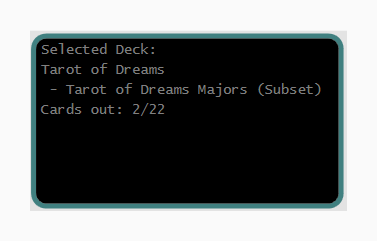
Subsets Folder
The Subsets Folder is where the program stores any Subsets you create. By default it is located at [Documents]\Orphalese\Subsets but this setting can be changed on the Folders tab of the Options form. The Subsets folder can contain subfolders and subsets themselves which are saved in XML Format.
Unsaved Subset
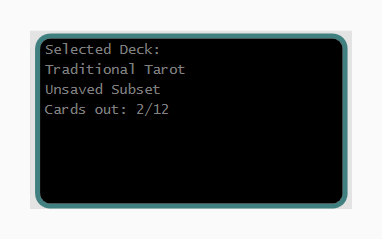
One of the Gather Card options offered by the program is to Gather to a new Deck. When you use this option the cards which are out of the deck effectively become a new Subset, but with the difference that it only has a temporary existence because it has not been permanently defined through the Subsets Wizard.
Text in the Caption Bar of the Background Form tells you the name of the currently active deck (the one that has the focus), the kind of Deck Form it is and the number of cards out and remaining in the deck. When the currently active deck form is an unsaved subset the caption text will appear as follows:
XML File
XML files are the format that the program uses to store its data. These files are human readable and if you open them in a text editor it is normally fairly easy to see what information they contain (very easy in the case of pop-up notes, not quite so easy in the case of spreads or readings). At some point you may wish to edit these files in an external editor, the main thing to be careful about is not to have the files in use by the program at the same time because this can result in a save conflict where data is lost.
|